Custom questions and quick actions
Use starter suggestions, quick actions on selected text, and your own custom prompts in the chat.
You do not have to phrase every question from scratch. The chat panel offers one-tap starter suggestions and quick actions, and you can always type a fully custom prompt. This guide covers all three.
Starter suggestions
When the chat panel is empty, you will see a set of starter suggestions for the whole paper:
- Summarize: a comprehensive summary of the paper
- Key Findings: the main contributions, in order of significance
- Methodology: an explanation of the approach the authors took
- Limitations: the study's limitations and suggested future work
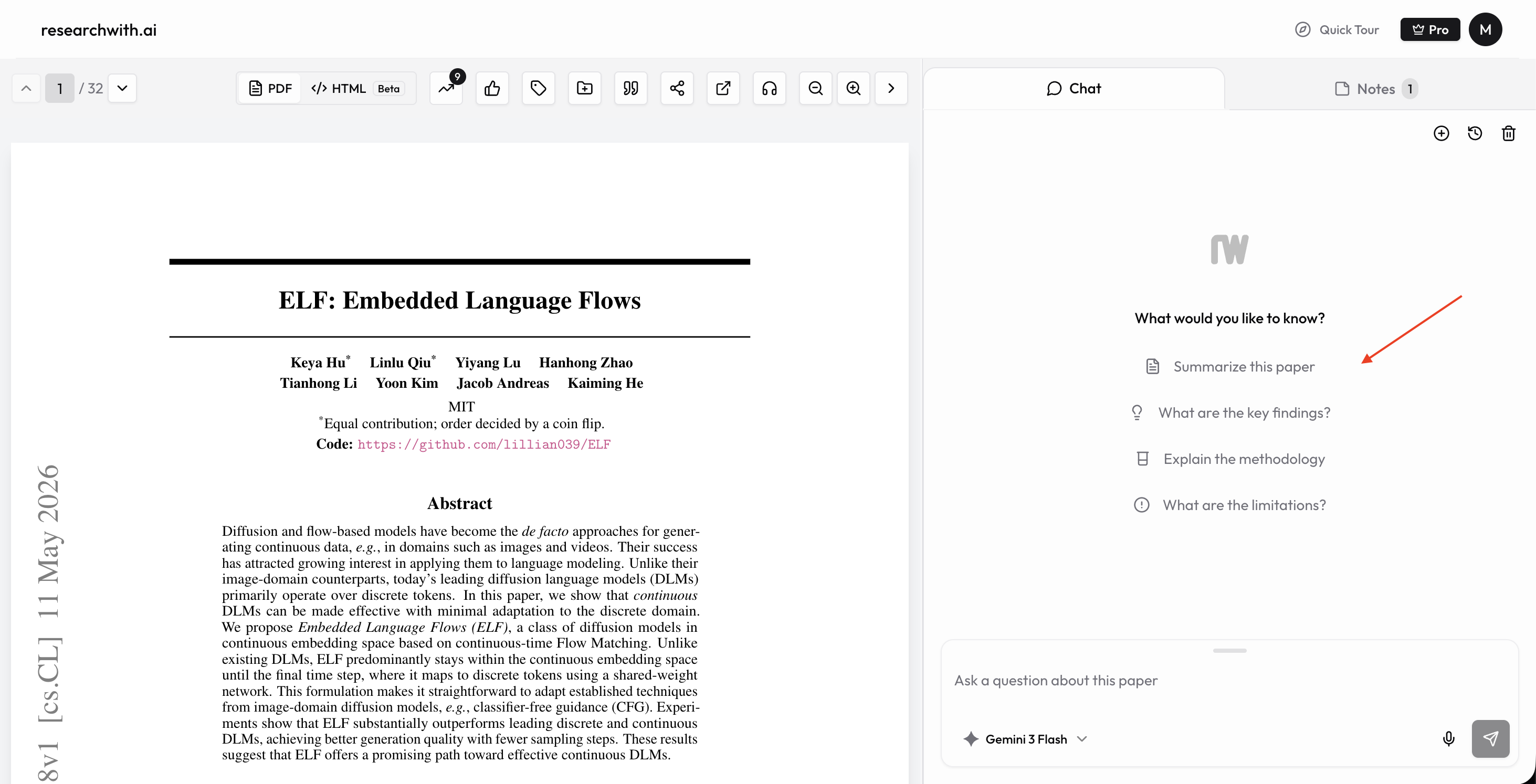
Tap one and the chat sends the corresponding question for you. These are a fast way to get oriented before you ask anything more specific.
Quick actions on selected text
When you select text in the paper, a small popover appears with quick actions that target exactly that passage:
- Explain: a detailed explanation of the selected text
- ELI5: an explanation in very simple terms
- Clarify: added context for a confusing passage
- Quiz: a short quiz based on the selected text
Explain is shown first; tap More in the popover to reveal ELI5, Clarify, and Quiz. The popover also has an Ask AI button if you want to type your own question about the selection instead of using a preset action.
Asking a custom question
For anything the presets do not cover, just type your own question in the chat input and press Enter. You can ask with or without a selection:
- Without a selection: your question is answered against the whole paper, using the most relevant retrieved passages as context.
- With a selection: select a passage first, choose Ask AI in the popover, then type your prompt. Your question is sent together with the quoted passage and additional context is retrieved from the passage, so the model focuses on that specific text.
Quoting the exact paragraph you care about is the most reliable way to get a precise answer, especially in long papers.
A note on figures, images, and tables
The chat works with the paper's text. There is no separate "ask about this image" or "ask about this table" affordance: you cannot click a figure or chart to query it directly.
To ask about a figure or table, refer to it in words. Select its caption or the surrounding text and use Ask AI, or type a question that names it, for example "What does Table 2 show about the baseline comparison?" or "Walk me through the trend in Figure 4." The model answers from the extracted text and caption, so questions about a table's reported numbers or a figure's described findings work well, while questions that depend purely on the visual itself may not.
Tips
- Start with a starter suggestion to get oriented, then ask custom follow-up questions.
- Select the exact passage before using a quick action so the answer stays on target.
- Name figures and tables explicitly ("Figure 3", "Table 1") and pair them with their captions for the best results.
- See Chat with paper for citations, the model picker, and thinking mode.