AI chat history
Find and reopen your past paper chats and search conversations.
researchwith.ai keeps a history of your AI conversations so you can return to an earlier discussion instead of starting over. There are two separate histories: one for chats on papers, and one for search and research-assistant conversations.
Paper chat history
Every conversation you have in the chat panel of the Reader is saved. To review them, open your profile and select the AI Chats tab.
Conversations are grouped by paper. Each paper card shows how many conversations you have had with it, and within the card each conversation shows the first question, the first AI response, the date, and a message count.
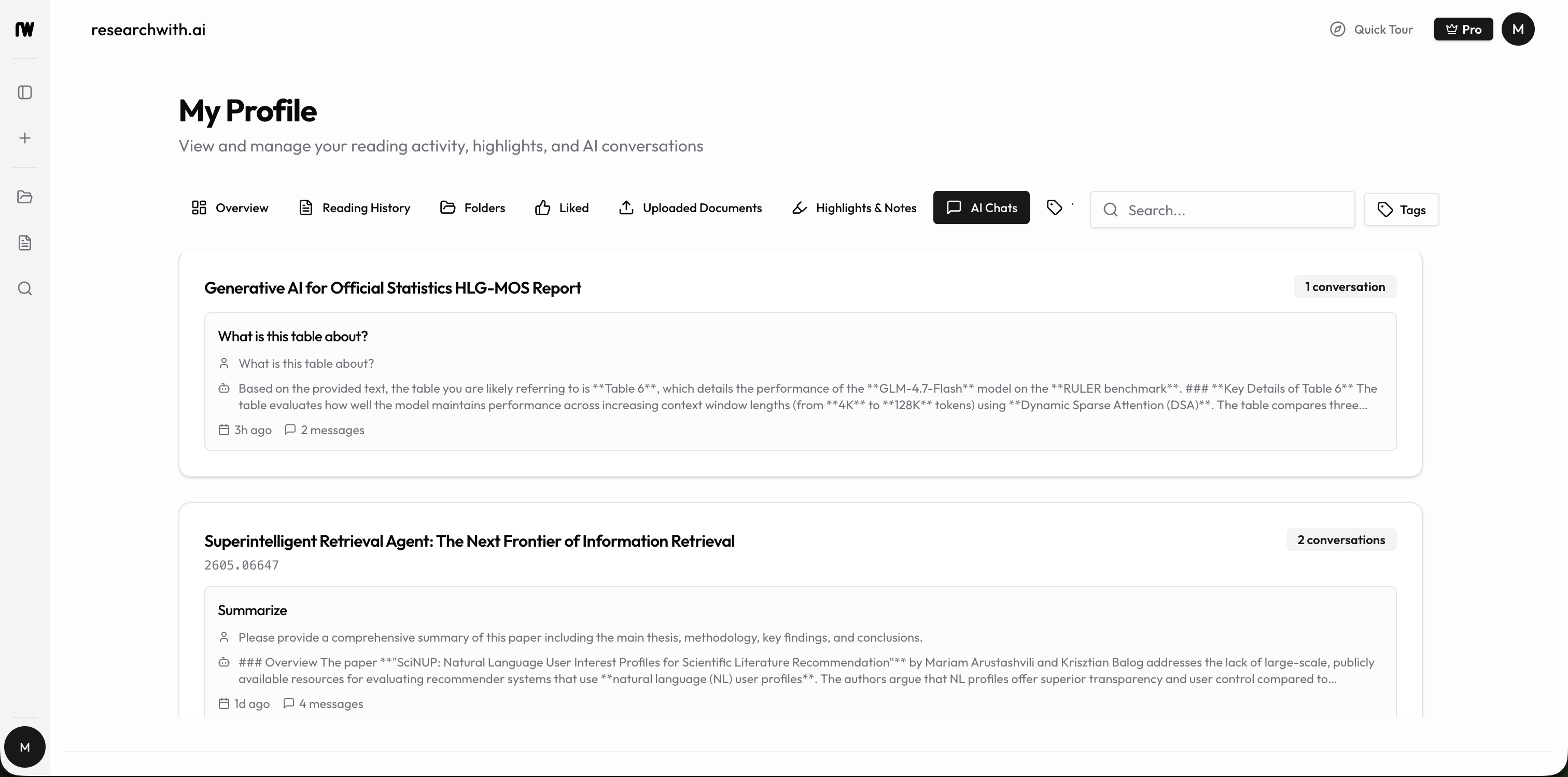
To reopen a past chat, click the conversation. It loads the Reader for that paper with the full conversation restored, so you can keep asking follow-up questions where you left off.
Search conversation history
Search, including the research-assistant style natural-language conversations, has its own history page at /search/history.
Each entry shows the search query as a title, a preview of the AI response, the number of papers found, and when the conversation last had activity. Single-turn direct paper loads are excluded; those belong with your paper history.
To reopen a search conversation, click its card. It returns you to the search experience with that session restored, ready to continue.
Getting back into a conversation
To summarize where each history lives and what reopening it does:
- Paper chats: Profile, AI Chats tab. Click a conversation to reopen it inside the Reader for that paper.
- Search conversations: the
/search/historypage. Click an entry to reopen it in search.
Searching and managing history
Both histories let you filter:
- On the AI Chats tab, the profile search box matches conversation titles, paper titles, and message content.
- On the search history page, the search box matches session titles and message content.
On the search history page you can also delete a conversation with the trash icon on its card, and start a fresh one with New search.
Tips
- Paper chats and search conversations are kept separately; check the matching history for the kind of conversation you are looking for.
- Reopening a conversation restores its full context, so follow-up questions stay grounded in the earlier discussion.
- Use the search box in either history when you remember a phrase but not which paper or query it belonged to.